
Have a question? Enter a search term. Or give us a call at 1-888-518-0818

Wingman is Mission Control's conversational copilot — the purple button in the toolbar. Ask about your schedule in plain English, or hand it a scheduling task: Wingman reads the same live schedule you do and answers with specifics. And when you ask it to change something, it stages a plan that you approve before anything happens — every time.
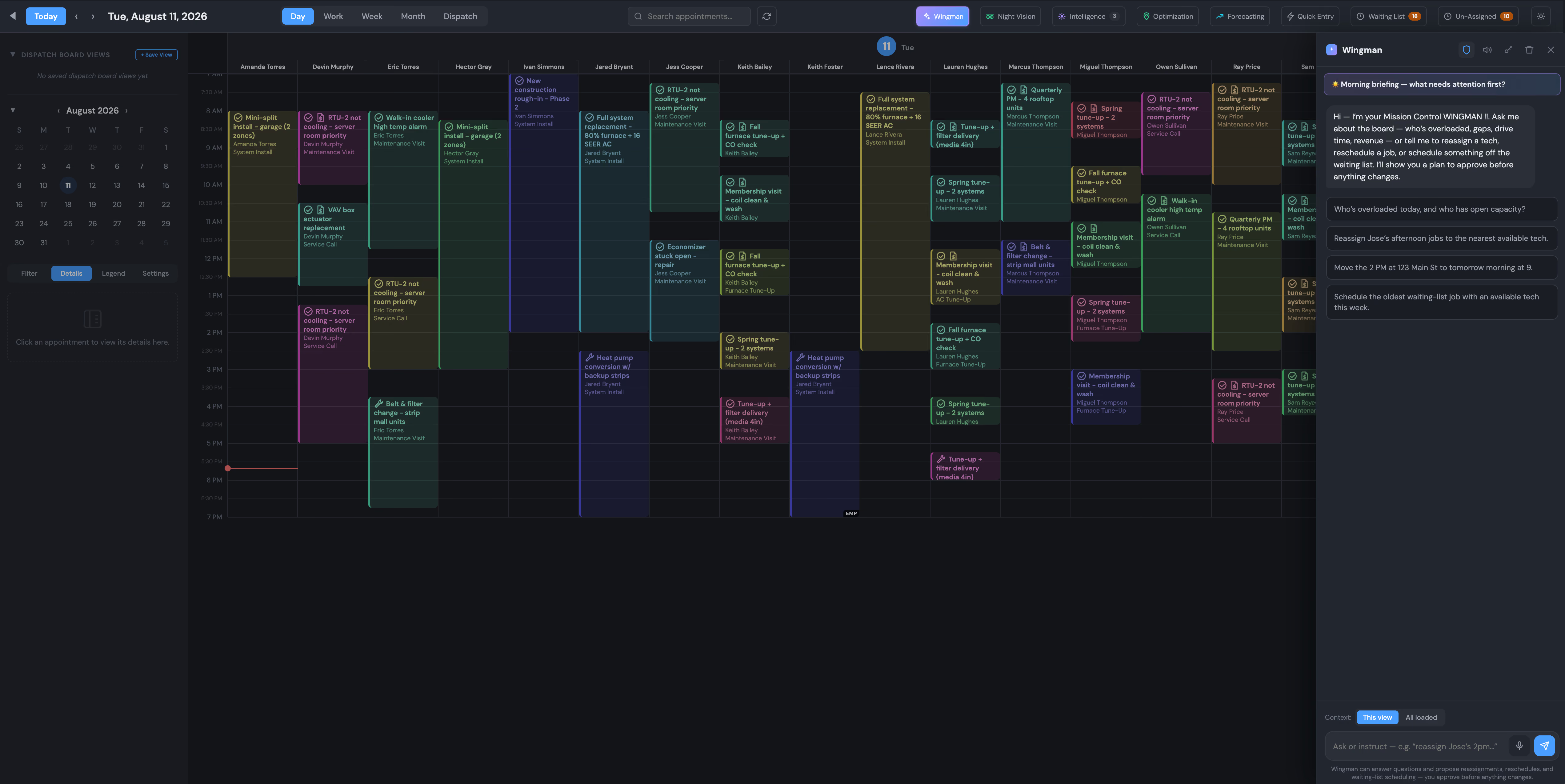
Open Wingman from the purple button in the Mission Control toolbar. The panel opens alongside your calendar and works from the same live schedule and waiting-list data you're looking at.

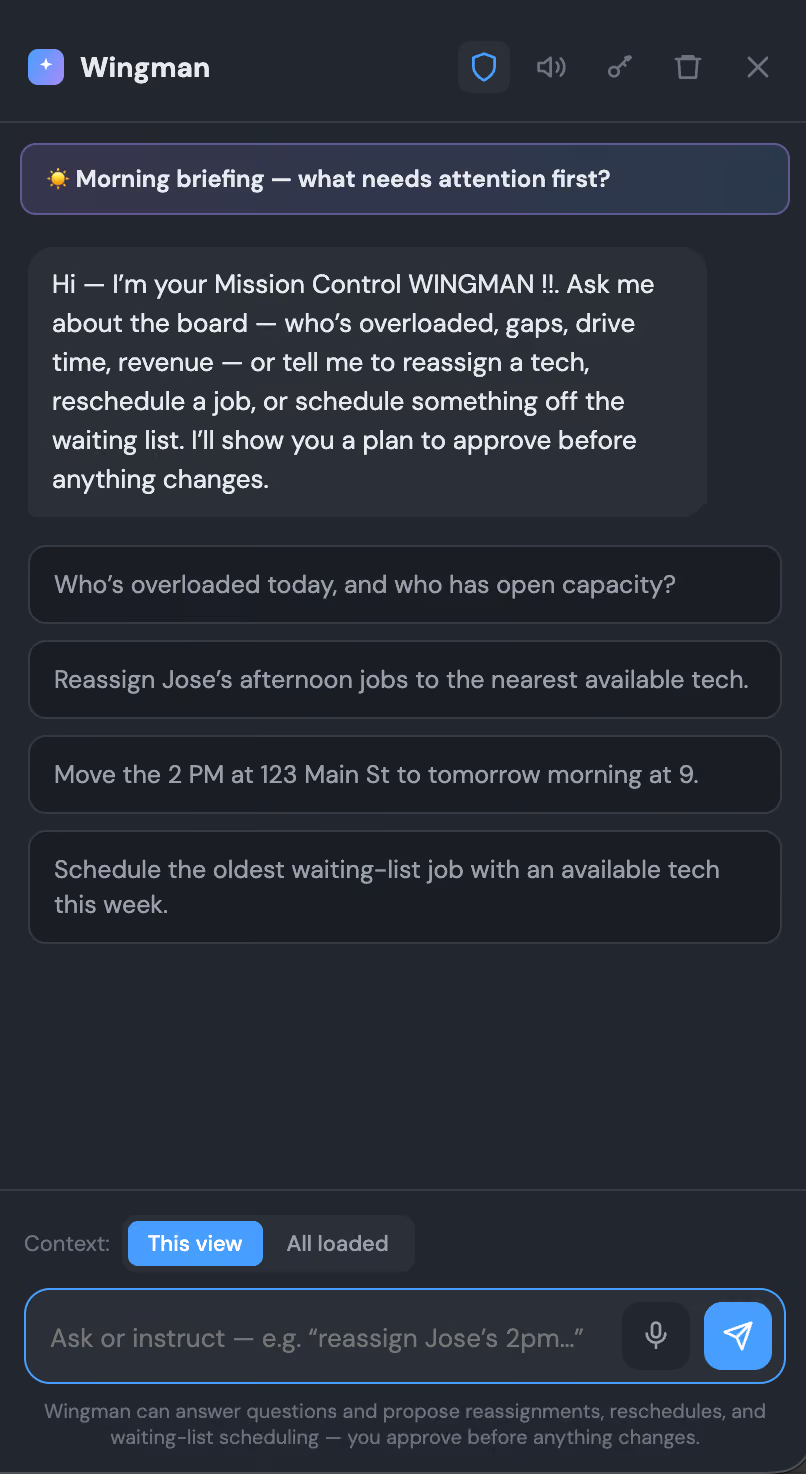
Across the top of the panel you'll find five controls:
● Shield — Preview Mode. On by default. Every change Wingman proposes is staged as a plan for you to review and approve before it's applied. Leave this on.
● Speaker — Read responses aloud. Toggle it on and Wingman speaks its answers.
● Key — Model & API key. Choose which Claude model Wingman uses, paste your Anthropic API key, and test the connection. The key is stored only in your browser.
● Trash — Clear conversation. Starts a fresh chat. It only clears the conversation — it never touches the schedule.
● X — Close the panel. Closing the panel (or pressing Esc) changes nothing on the calendar.
Down in the input row, the microphone button lets you speak a request instead of typing it, and the Context toggle sets whether Wingman looks at just the current view or all loaded appointments.
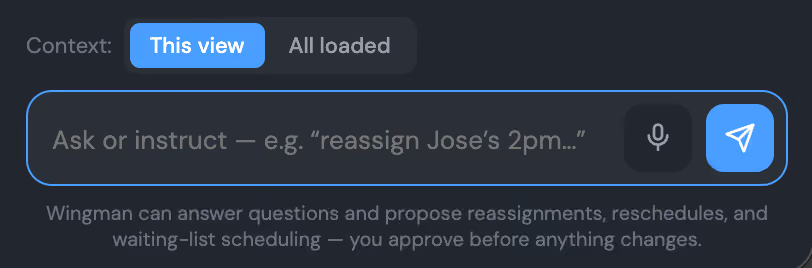
Wingman is fastest as a second set of eyes. Ask it the questions you'd normally answer by scanning the calendar:
"Who's overloaded tomorrow?" or "Who has open capacity this afternoon?"
"What's worth scheduling off the waiting list this week?"
"Who has room for a two-hour job near the north side on Friday?"
Wingman can also act — reschedule an appointment, reassign a job, or schedule something off the waiting list.
Describe the change in plain English and Wingman stages a plan: what will move, where it will land, and why.
Review the plan and click Approve to apply it — or dismiss it, and nothing changes.
● It never changes the schedule without your approval — every action is staged as a plan first.
● It never creates or deletes appointments.
● It never edits customer or work order records.
● Dismissing a plan or closing the panel changes nothing.
Wingman runs on your own Claude API key — the same bring-your-own-key setup as The Oracle — so usage is billed to your key, pay-as-you-go. It's entirely optional: the other Mission Control assistants (Night Vision, Intelligence, Optimization, and Forecasting) are built in at no extra cost.
To obtain and activate your Claude API keys (also known as Anthropic API keys), sign up for an account at the Claude Console (platform.claude.com). Next, navigate to Settings > API Keys, select Create Key, and copy the key to store it securely, such as in a Secrets Manager. Finally, to enable your usage, add prepaid credits under the Billing section.