Have a question? Enter a search term. Or give us a call at 1-888-518-0818
Reduce drive time, lower fuel costs, and improve technician efficiency — with a single click. This guide explains how Mission Control's Route Optimization works and how to use it.
What Route Optimization does: With a single click, Mission Control analyzes the day's schedule, proposes a more efficient stop order, and previews projected time, labor, and fuel savings — before any changes are applied. It only reorders stops within the same day for the same technician. It does not move appointments across days, merge jobs, or modify appointment durations.
Minimizes travel between appointments by finding the most efficient stop order.
Shorter routes mean measurable fuel savings calculated per mile saved.
Less windshield time means more jobs completed per day.
See proposed changes overlaid on the live map before committing.
Time windows and confirmed appointments are always honored.
Downstream arrival times are automatically recalculated after any reorder.
Note: Technicians with fewer than 3 geocoded stops cannot be optimized — the Optimize This Day button will be disabled. Appointments without valid coordinates are automatically excluded.
| Field | Purpose |
|---|---|
| StartDateTime / EndDateTime | Defines the original schedule order and appointment duration |
| Latitude / Longitude | Used for routing and drive-time calculations |
| AppointmentWindow | Creates customer time-window constraints for the optimizer |
| AppointmentPreNotification | Determines whether an appointment is locked (confirmed) |
| AssignedEmployee (Direct Labor Rate) | Used to calculate estimated labor savings |
| Provider | Setup | Notes |
|---|---|---|
| Haversine (Default) | No setup required | Straight-line calculations using configurable average speed |
| Google Distance Matrix | Requires Google Maps SDK + API key | Real driving routes with traffic and road restrictions |
| OSRM | Public demo or self-hosted | Open-source routing using actual road-network distances |
Values in AppointmentWindow become scheduling constraints. The optimizer must arrive within the allowed window, with a ±30-minute slack buffer.
If AppointmentPreNotification contains the word "Confirmed" (case-insensitive), the appointment is locked. It cannot be moved and preserves its exact scheduled time.
Supported Time Window Formats
| Example Value | Resolves To |
|---|---|
| 8AM-10AM | 8:00 AM – 10:00 AM |
| 8:00-10:00 | 8:00 AM – 10:00 AM |
| 10-2 | 10:00 AM – 2:00 PM |
| 13:00-17:00 | 1:00 PM – 5:00 PM |
| Morning | 8:00 AM – 12:00 PM |
The Apply button is disabled if projected savings are less than 0.5 minutes, preventing unnecessary schedule churn.
Navigate to the Mission Control Center within Smart Service Cloud. Select Optimization from the upper-right corner.
Choose the day you want to optimize from the calendar. Mission Control loads technician schedules, existing routes, appointment locations, and current travel paths.
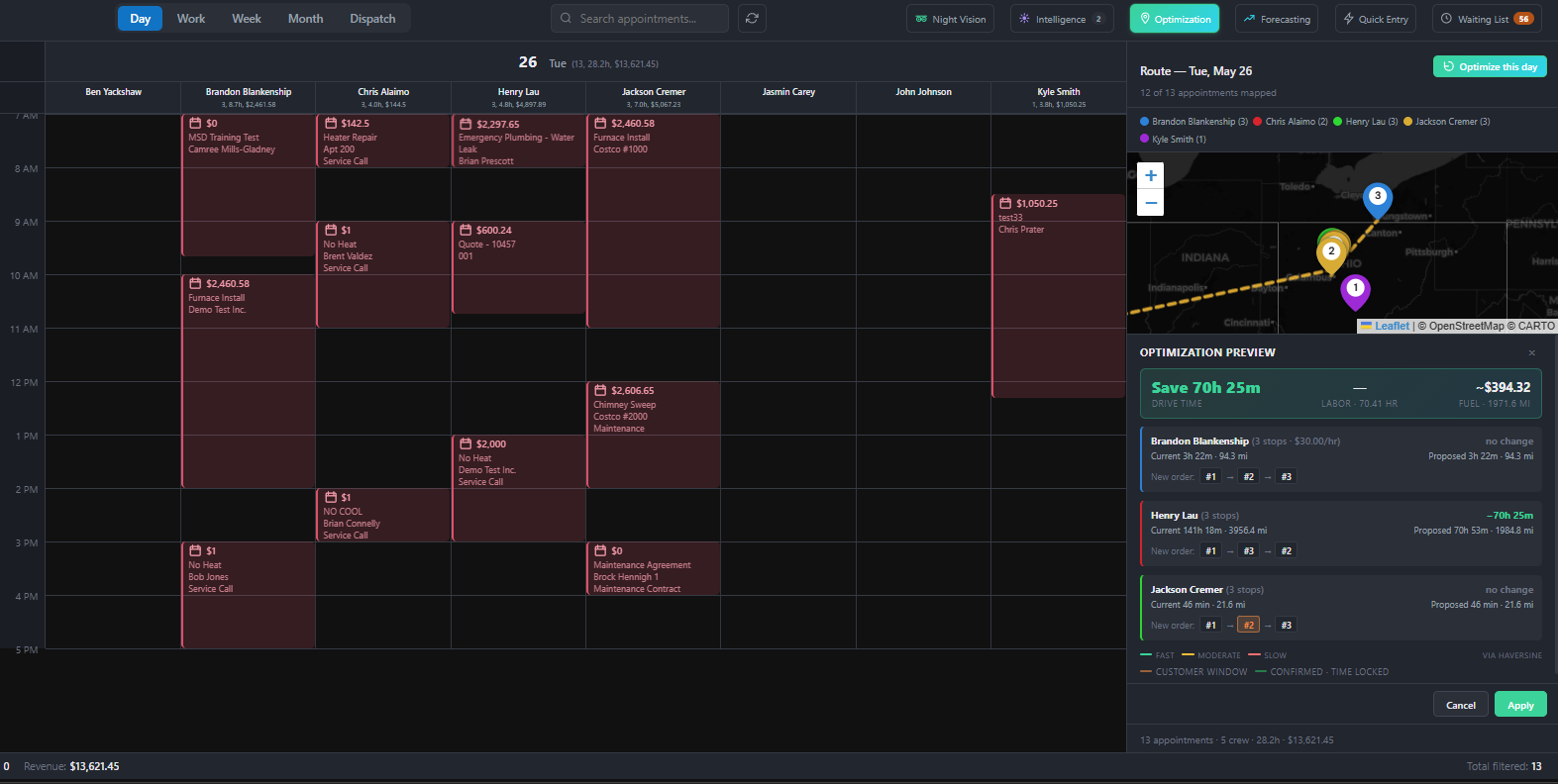
The Route Map displays technician stops, appointment sequences, and drive paths. Each technician's route is shown independently for easier review.
Route color legend
Mission Control immediately builds route matrices, evaluates candidate orders, applies optimization logic, calculates savings, and generates a visual proposal overlay on the map.
Each technician receives an optimization card showing current vs. proposed stop order, drive time, mileage reduction, and estimated savings. No changes are made until Apply is selected.
Apply — Reorders non-locked appointments, recalculates arrival times, and writes changes to the calendar immediately. Confirmed appointments remain unchanged.
Cancel — Removes the preview and restores the original schedule with no changes saved.
| # | Customer | Start | Duration | Window | Confirmation |
|---|---|---|---|---|---|
| 1 | Smith | 8:00 AM | 60 min | — | Voicemail left |
| 2 | Jones | 9:30 AM | 60 min | — | — |
| 3 | Brown | 11:00 AM | 60 min | — | Confirmed by phone |
| 4 | Davis | 1:00 PM | 60 min | 1PM–3PM | — |
| 5 | Wilson | 3:00 PM | 60 min | — | — |
Without Constraints
Original route → Optimized route:
With Constraints Applied
Brown = Confirmed · Davis = 1PM–3PM window
Every meaningful swap either moves the confirmed appointment or violates Davis's time window. Mission Control retains the original route and displays: Already Optimal — No Change Found.
Optimize routes after major schedule updates to capture the most savings.
Review recommendations daily — conditions and schedules change frequently.
Verify appointment geocoding accuracy — appointments without coordinates cannot be optimized.
Organize technicians by region or team to reduce cross-territory routing.
Confirm customer commitments before applying so locked appointments reflect accurate data.
Re-run optimization after adding multiple appointments to a day already optimized.