
Have a question? Enter a search term. Or give us a call at 1-888-518-0818
A conversational analytics assistant that lets you explore your business data in plain language — no reports to build, no queries to write.
The Oracle is a conversational analytics assistant built into your host application. Instead of building reports by hand, you load a dataset and simply ask in plain language — "How many open work orders?", "Revenue by month for the last year," or "Create an invoice for WO-1234" — and the Oracle answers with tables, charts, pivots, formatted documents, or file downloads.
It runs entirely as a single self-contained web page embedded inside your host application. Your data never leaves the browser unless you explicitly send a document by email, and all settings and chat history are stored locally on your device.
A built-in, rule-based query engine that works with no API key and no internet round-trip. Ideal for fast lookups, counts, and standard analysis.
Questions are handled by Anthropic's Claude using an agentic set of tools for richer analysis, formatted documents, and multi-step tasks.
Switch between modes any time in Oracle Settings.
The welcome screen presents a grid of ready-to-load datasets drawn from your host application. Select one to open a fetch dialog where you choose a date-filter field and range.
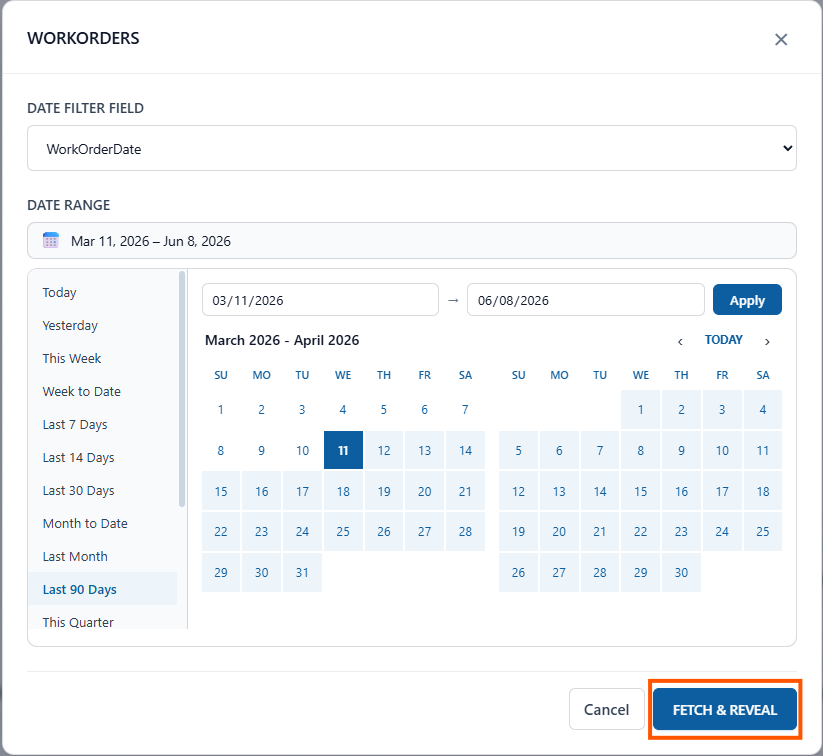
The fetch dialog includes a full calendar plus one-click range presets:
How data is retrieved: The Oracle connects through the SmartService data bridge to fetch records. The complete dataset is held in your browser. In Claude AI mode, only the data schema and a few sample rows are sent to the model — never your full dataset.
Type a question in the input box and press Enter to send. Use Shift + Enter for a new line. The send button is labeled Reveal.
Each dataset comes with curated starter prompts. For example:
Lead-funnel conversion analysis, lead-source ROI comparisons
Customer segmentation, churn-risk detection, cohort retention
Call-center performance dashboards, staffing heat-maps
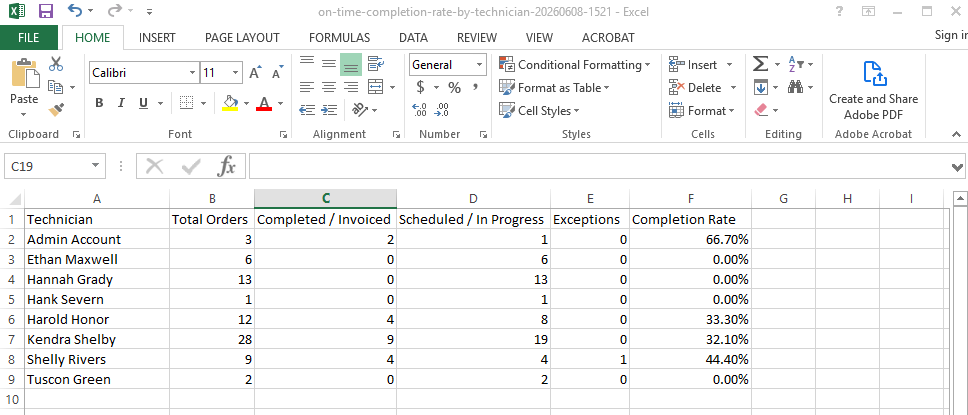
Technician utilization and no-show trend analysis
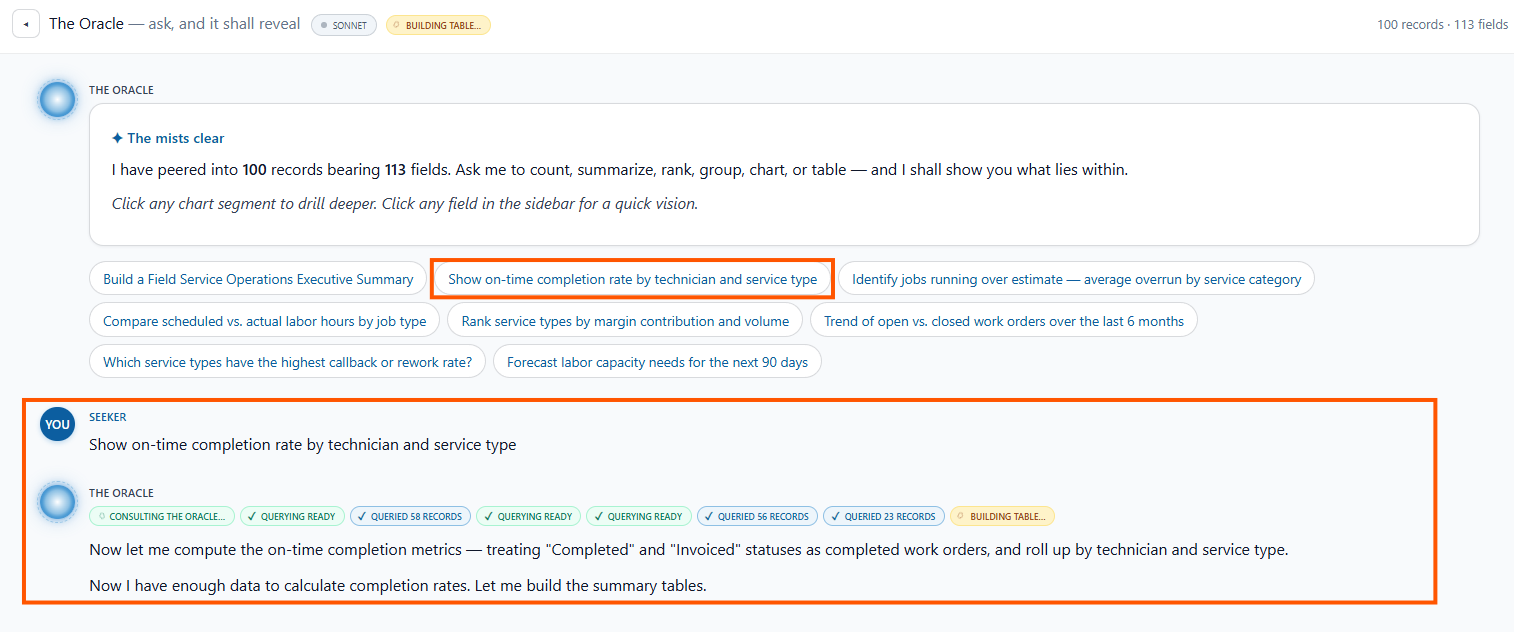
In Claude AI mode, responses stream in as they are generated. Status chips appear showing each processing step — for example, "Queried 1,204 records" — so you always know what the Oracle is doing.
In Claude AI mode, the Oracle has a full toolkit it can use singly or in combination to complete a request.
Paginated data tables (25 rows/page) with your chosen columns and ordering. Ideal for lists and rankings.
Local + AIBar, line, doughnut, and pie charts for trends, comparisons, and distributions.
Local + AITwo-dimensional summaries with row and column totals, grand totals, and heat-map shading.
Local + AIPrint-ready invoices, reports, emails, memos, quotes, statements, proposals, and summaries — with Copy, Download HTML, and Print / PDF actions.
AI onlyOne-click CSV file downloads of any query result — e.g., "CSV of all unpaid invoices over 30 days."
Local + AIAny answer or generated document can be sent to you as an email through the host application's email service.
Local + AI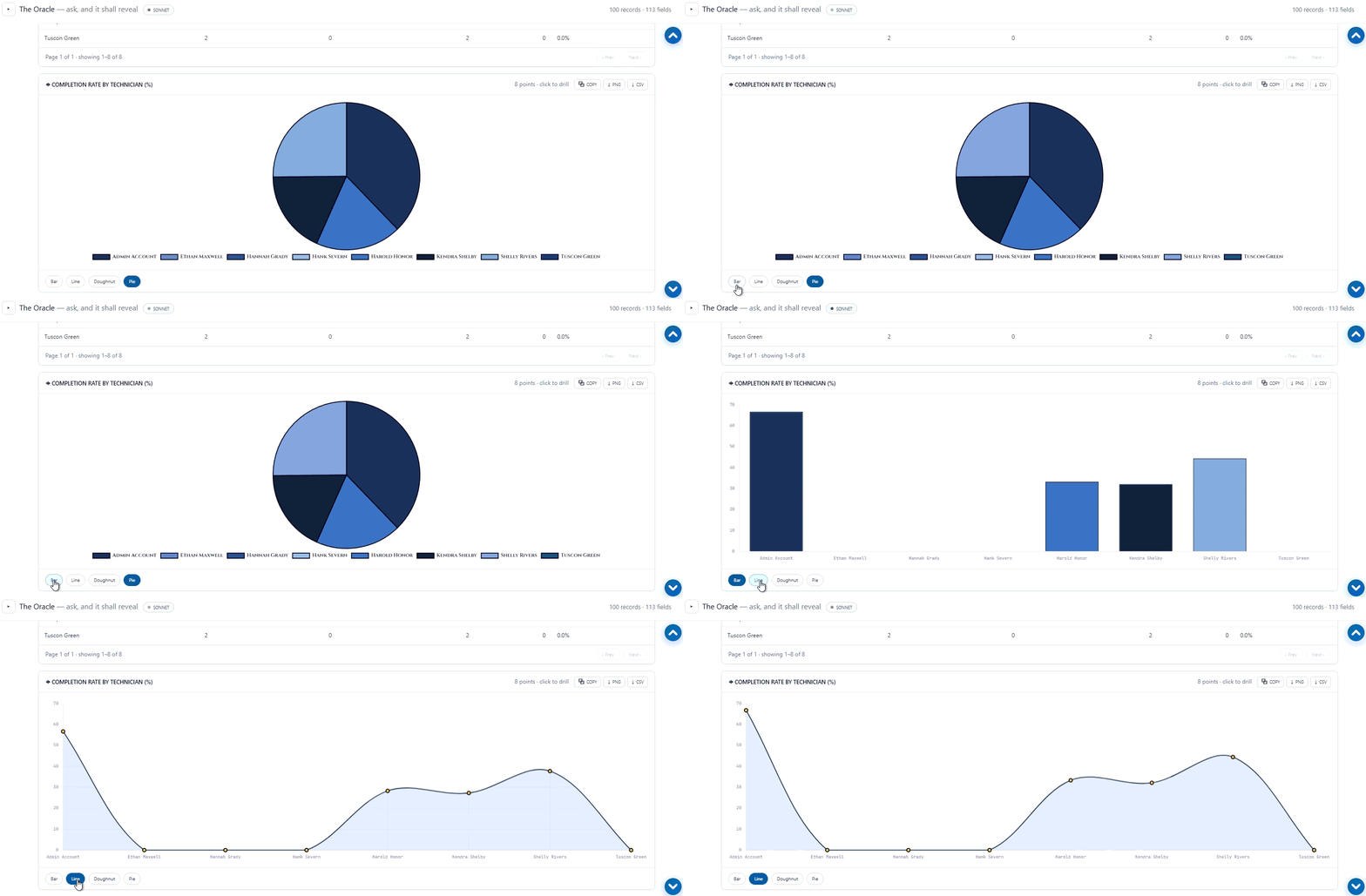
| Capability | Local Mode | Claude AI Mode |
|---|---|---|
| Lookups & counts | ✓ | ✓ |
| Filtering, grouping, aggregation | ✓ | ✓ |
| Tables, charts, pivots | ✓ | ✓ |
| Formatted documents (invoices, reports, etc.) | — | ✓ |
| Multi-step / open-ended analysis | Limited | ✓ |
| CSV export | ✓ | ✓ |
| Email a result | ✓ | ✓ |
| Requires API key / internet | No | Yes |
The sidebar keeps a history of your conversations, called Visions. Conversations are saved automatically — including on close — and the Oracle reopens your most recent vision when you return. All history lives in your browser's local storage.
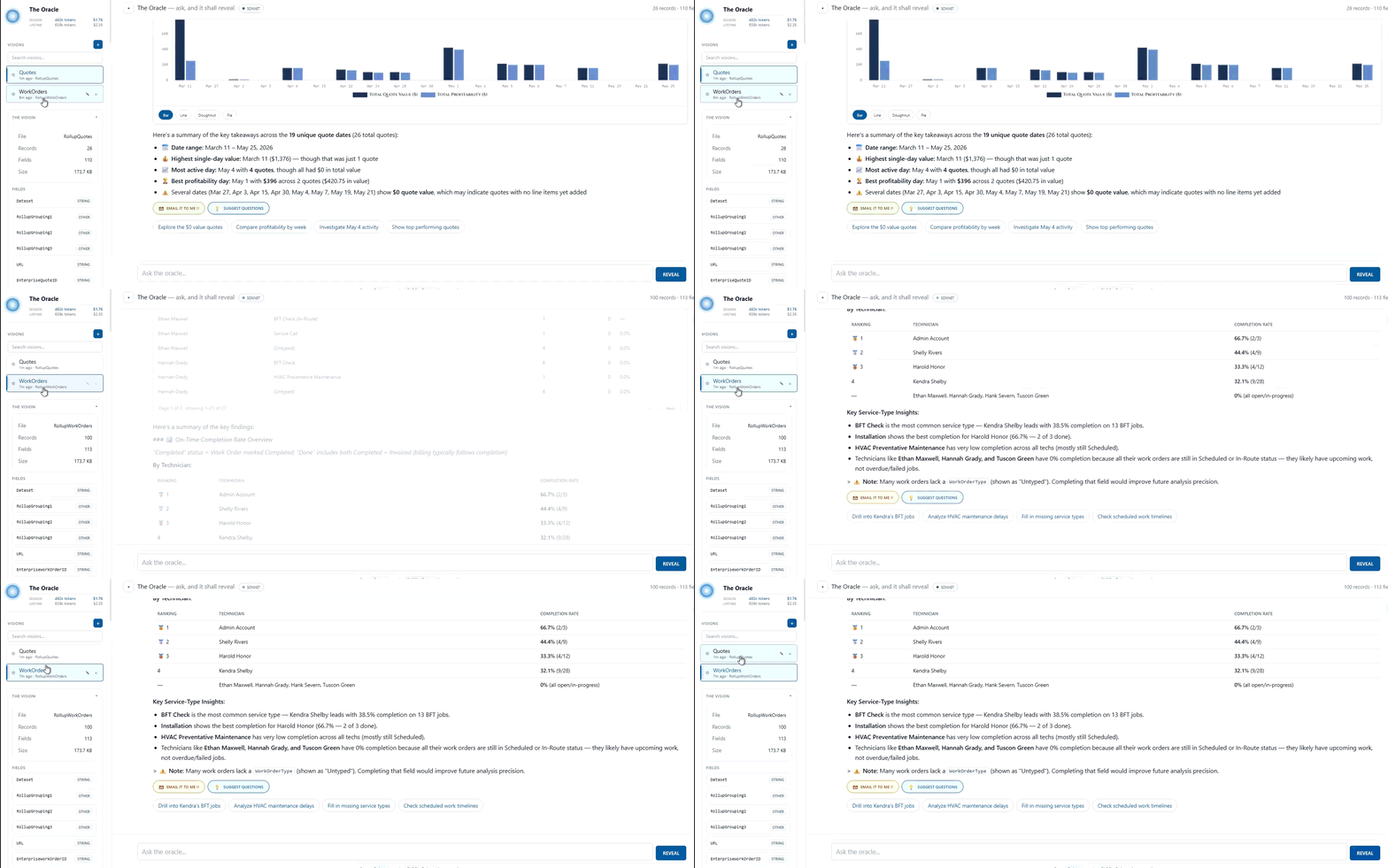
Vision Panel: A collapsible sidebar section shows the currently loaded dataset, its record count, and the list of available fields — so you always know what data you're working with and what field names to reference in questions.
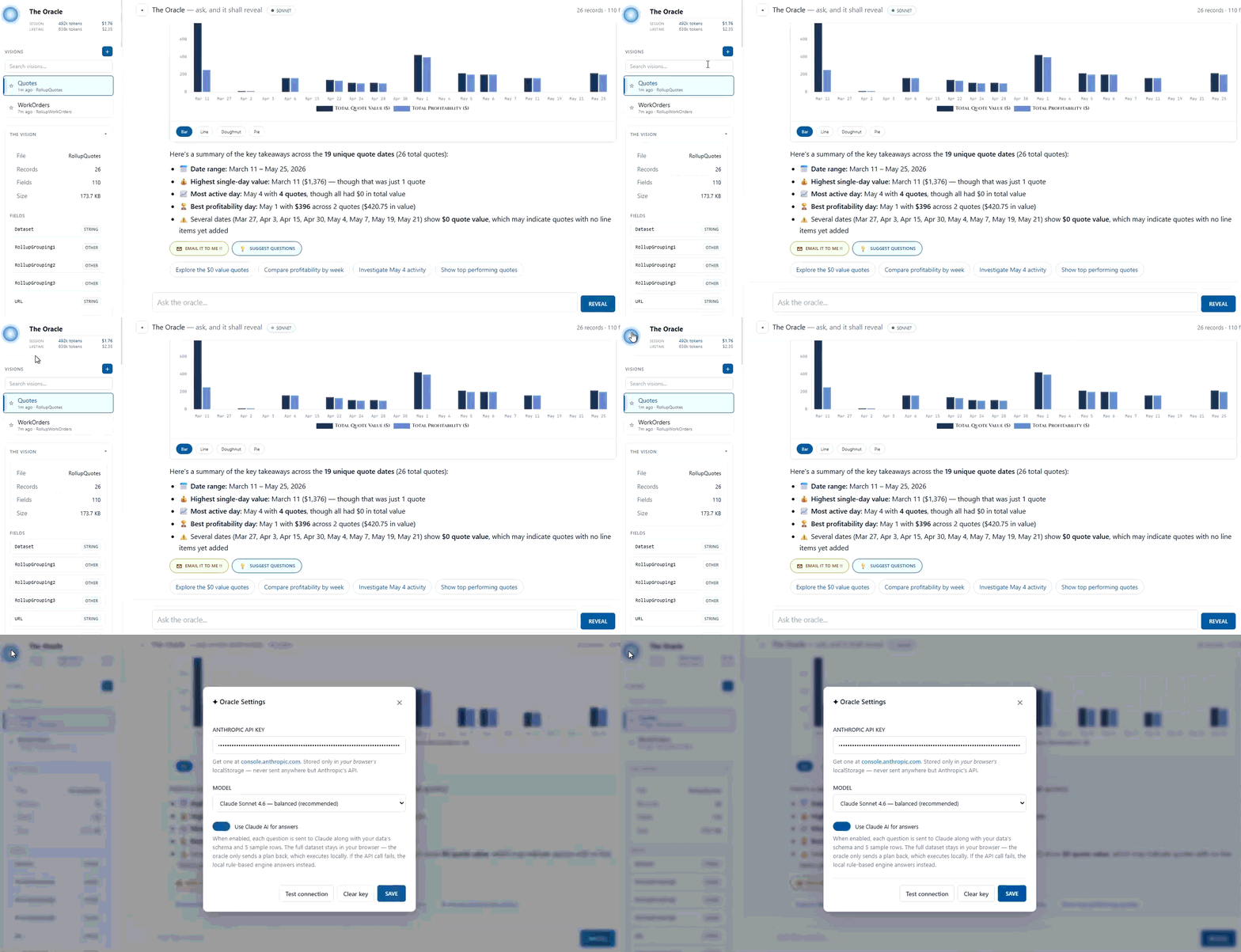
Open settings from the brand orb in the sidebar or the status badge in the header.
Required for Claude AI mode. Stored only in your browser's local storage and sent only to Anthropic's API. Use Test connection to verify and Clear key to remove it.
Opus — most capable · Sonnet — balanced, recommended default · Haiku — fastest response time.
Toggle between Claude AI mode and the local engine. If an API call fails, the Oracle automatically falls back to the local engine so you still get an answer.
After saving your API key, we recommend refreshing any browser pages where your Cloud database is currently open. The quickest way to do this is a Hard Refresh: press Ctrl + F5 — this forces the browser to ignore its cache and download the absolute newest version of the page directly from the server.
When Claude AI mode is active, the sidebar displays running token and cost totals. The Oracle tracks input, output, and cached tokens per request and estimates cost from the selected model's pricing. Clicking the stats area lets you reset the totals.
Stays entirely in your browser. Local-mode analysis happens on your device with no data transmitted.
Only the schema and a few sample rows are transmitted to Anthropic's API. The plan executes locally against your data.
Stored in your browser's local storage, namespaced per host environment so separate environments don't collide.
Data leaves the browser only when you explicitly choose to email a result.
Send a question
New line in input
Collapse / expand sidebar
A cosmic dark "oracle" theme and a clean, professional light theme — matched to your host app's active color.
Scroll-to-top and scroll-to-bottom buttons keep long conversations navigable without losing your place.
Be specific with field names. The field list in the Vision panel shows the exact names the Oracle expects — use them in your questions for precise results.
Pull the right date range first. Analysis only covers the records you've loaded, so set the date range to match the period you care about before asking.
Ask for the output you want. Phrases like "as a chart," "build a pivot," "create an invoice," or "export to CSV" steer the Oracle toward the right format.
Chain requests. Follow up within a vision to refine, drill down, or reformat a previous answer without starting a new conversation.
Choose the right model for the task. Use Sonnet for everyday work, switch to Opus for demanding analysis, and Haiku for the fastest turnaround.